
How does the auto-saving feature work?
Our auto-saving feature is designed to protect your work and ensure you never lose your progress, even if there are network issues or unexpected interruptions. Here’s how it works:
How auto-saving works
Local storage: As you create or edit content, your progress is automatically stored in your browser’s local storage. This means that everything you type or change is temporarily saved on your device.
Network independence: If your internet connection drops or there’s an error that prevents data from being sent to our servers, your changes remain safe in local storage.
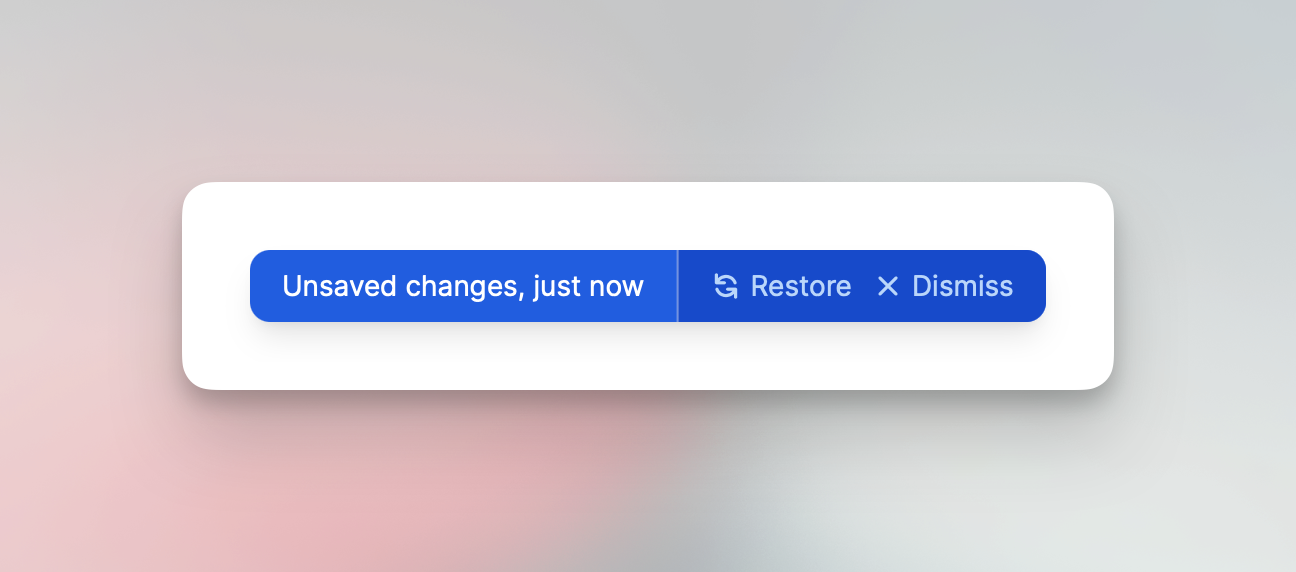
Recovery: When you return to the editor—on the same browser and device—you’ll be prompted to either restore your unsaved changes or dismiss them and start fresh (or with the latest stored database version).
How to restore or dismiss changes
Restore: Click the restore option to load all changes saved in your local storage since your last successful save to our server. This allows you to pick up right where you left off.
Dismiss: If you no longer need the locally stored changes (for example, if they’re outdated or you want to start over), you can dismiss them, and the content will revert to what’s stored on the server.
Benefits of auto-saving
Prevents data loss due to network issues or browser crashes.
Ensures a smooth editing experience with peace of mind.
Gives you control over recovering or discarding unsaved changes.
Please note that you still need to actively click the “Save as draft” or “Publish” button to actually store the content and make it visible to viewers of your workspace.